
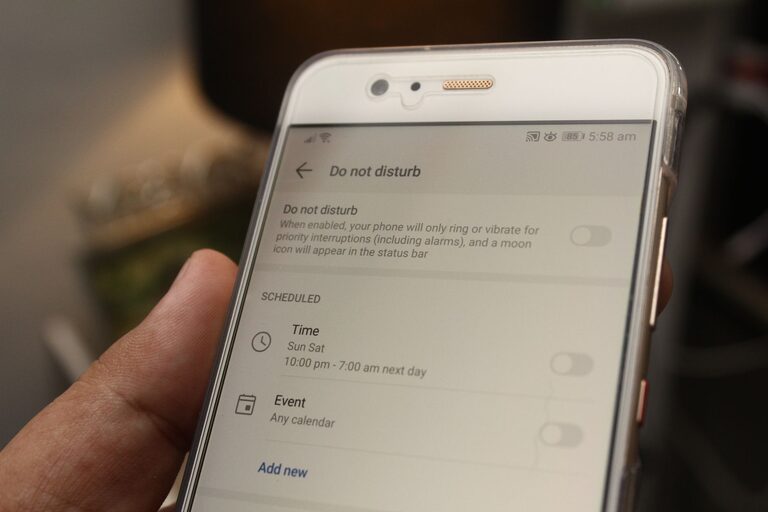
Notifications can be useful, but too many alerts can make your day feel fragmented. A message, reminder, news update, or app prompt can pull your attention away from whatever you are doing. Over time, constantly checking alerts may make it harder to focus, relax, or enjoy time away from your devices.
Setting notification boundaries does not mean ignoring important information. It means deciding when, where, and how you want notifications to reach you. With a few simple changes, you can make your devices work for you instead of allowing every alert to set the agenda.
Start by noticing the problem
Before changing your settings, pay attention to how notifications affect your routine. For a day or two, observe:
– Which alerts interrupt you most often
– Which notifications are genuinely useful
– Which apps send repeated or unnecessary updates
– When you tend to check your phone automatically
– Whether notifications interrupt work, meals, conversations, or rest
This quick review can reveal patterns. You may find that a small number of apps create most of the distractions. You may also notice that alerts are not always the problem; the habit of checking your device immediately may be the bigger issue.
Once you understand the pattern, you can make targeted changes instead of turning off everything at once.
Sort notifications into categories
A simple way to create boundaries is to divide notifications into three groups.
Important and time sensitive
These alerts may need your quick attention. Examples could include calls from selected contacts, delivery updates, calendar reminders, or messages related to a current task.
Keep these notifications available, but limit them to the people and services that truly matter. Many devices allow you to create a list of priority contacts or approved apps.
Useful but not urgent
These notifications can be helpful, but they do not require an immediate response. Examples include social media messages, routine emails, app updates, and general reminders.
Consider moving these alerts to a scheduled summary or checking them at set times. This allows you to stay informed without responding throughout the day.
Unnecessary or distracting
Some notifications exist mainly to bring you back to an app. Promotions, game updates, suggested content, and repeated engagement prompts often fall into this category.
Turn these alerts off unless they provide clear value. You can still open the app when you choose.
Turn off nonessential alerts
You do not need to accept the default notification settings for every app. Review your settings and disable alerts that do not support your priorities.
Start with apps that send frequent updates. Ask yourself:
– Would I miss anything important if this notification were turned off?
– Can I check this information at a time I choose?
– Does the alert help me complete a task or simply encourage me to open the app?
– Is there another way to receive this information less often?
You can often customize notifications by type. For example, you might keep direct messages but turn off likes, recommendations, and promotional alerts.
Reducing unnecessary alerts can make the notifications you keep more meaningful.
Use scheduled summaries
Many phones and apps offer scheduled notification summaries. Instead of receiving every update as it arrives, you receive a grouped list at selected times.
Choose times that fit your routine, such as:
– Late morning
– Around lunchtime
– Midafternoon
– Early evening
Avoid scheduling summaries during meetings, focused work, meals, or your wind-down period. The goal is to create predictable check-in points without filling your entire day with interruptions.
Scheduled summaries work especially well for email, shopping, social media, and news apps. They may not be appropriate for services where timing matters.
Create focus periods
Set aside blocks of time when notifications are limited or paused. These periods can support work, reading, creative projects, exercise, or quality time with other people.
A focus period does not have to last all day. Start with 20 or 30 minutes, then extend it as the habit becomes easier. During this time, you can:
– Silence nonessential alerts
– Place your phone out of reach
– Close notification panels on your computer
– Use a focus or do-not-disturb mode
– Keep only selected contacts or apps available
If you are concerned about missing something important, use an exception list. This allows certain calls or messages to come through while everything else stays quiet.
Set boundaries for work notifications
Work-related alerts can easily spread into personal time. Clear boundaries help separate working hours from the rest of your day.
If possible, define regular times for checking email and workplace messaging tools. You might check them at the beginning of the day, after a focused work block, and before wrapping up.
At the end of your workday:
- Review urgent items.
- Note anything that can wait until tomorrow.
- Set an away message if needed.
- Close work apps.
- Mute work notifications outside your chosen hours.
If your schedule requires availability, decide what counts as urgent and communicate that clearly. For example, coworkers may know to call for time-sensitive matters rather than sending a message that may not be seen right away.
Protect mornings and evenings
The first and last parts of the day often set the tone for everything else. Checking notifications immediately after waking up can pull your attention into other people’s priorities before you have started your own routine.
Try keeping notifications muted for the first 30 minutes of the morning. Use that time for breakfast, planning, stretching, or getting ready without interruptions.
In the evening, create a notification cutoff that gives you a clear transition away from screens. You might silence alerts an hour before bed and keep your phone away from your sleeping area. If you use your phone for an alarm, consider placing it across the room or using a separate clock.
Make notifications less attention grabbing
Sound and vibration are not the only ways notifications interrupt you. Banners, badges, flashing lights, and lock-screen previews can also invite you to check your device.
Consider changing the visual settings by:
– Removing number badges from nonessential apps
– Hiding message previews on the lock screen
– Turning off pop-up banners
– Using a simple wallpaper with fewer visual distractions
– Choosing one notification sound for important alerts only
These small adjustments reduce the number of cues competing for your attention.
Communicate your boundaries
Notification boundaries work better when other people understand them. Let friends, family, and coworkers know when you are less likely to respond.
You do not need to provide a long explanation. A simple message can help, such as:
> “I check messages a few times during the day, so I may not reply immediately. Please call if something is time sensitive.”
Clear expectations can reduce pressure to respond instantly. They also help others choose the right communication method.
Review your settings regularly
Your notification needs may change as your work, routines, and responsibilities change. Set a reminder to review your settings once a month or every few months.
During the review, ask:
– Which alerts have been useful?
– Which ones have become noise?
– Are any important alerts being missed?
– Do my focus periods still fit my schedule?
– Are there new apps that need attention?
Treat notification settings as an ongoing part of digital organization, not a one-time task.
Build a system that feels realistic
The most effective boundaries are practical enough to maintain. You do not need to silence every alert or follow a strict schedule. Start with one or two changes, such as turning off promotional notifications and creating a quiet evening period.
After a week, notice how those changes affect your attention and routine. Keep what works, adjust what does not, and gradually add more boundaries if needed.
Notifications are tools, not obligations. By choosing which alerts deserve your attention and when you want to receive them, you can stay connected while making more room for focus, rest, and the activities that matter most.